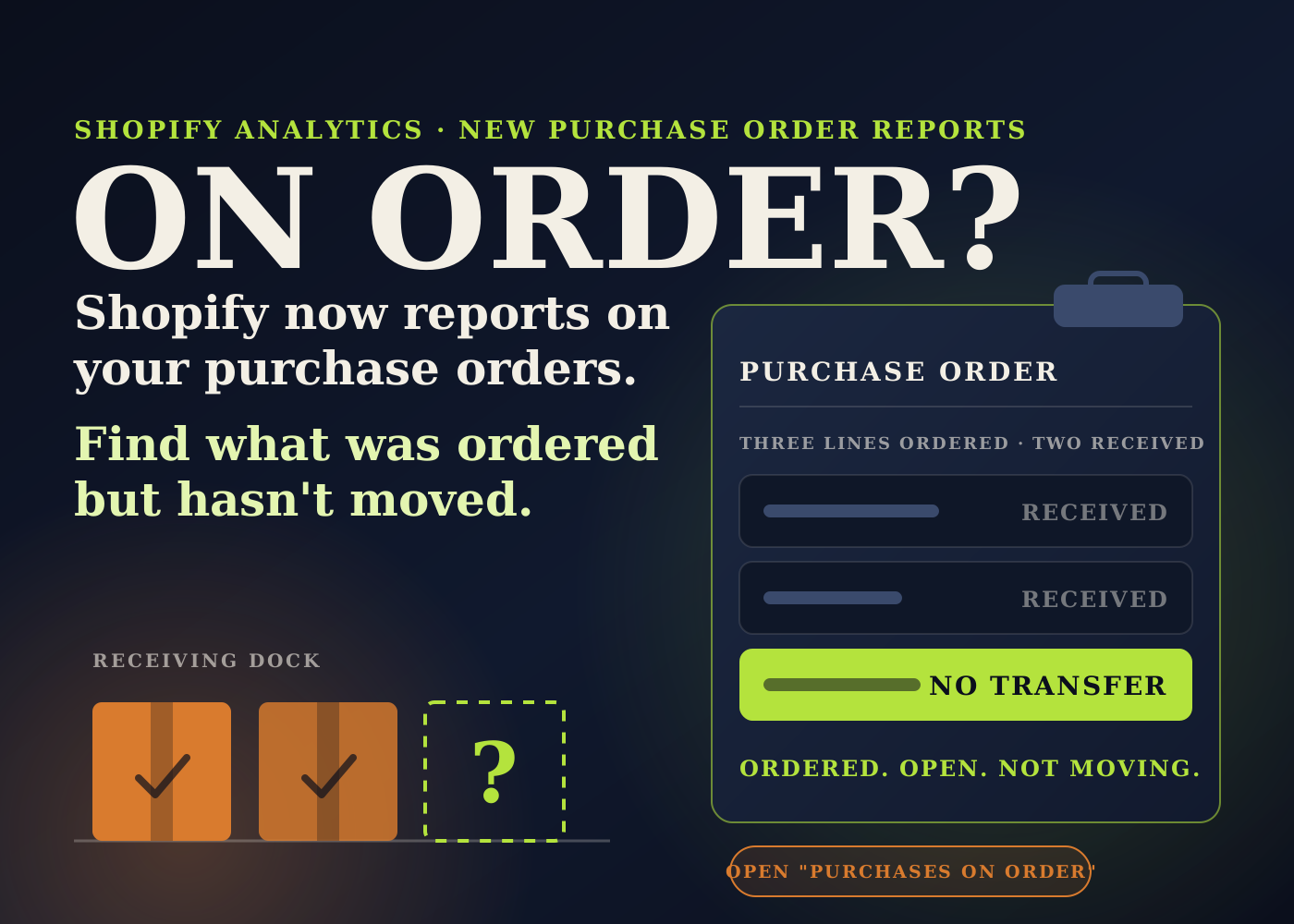
Shopify added purchase order reporting to Shopify Analytics. The changelog entry is dated October 6.
Until now, a purchase order in Shopify was mostly something you opened one at a time. Now you can review and export purchase order data across all of them.
It is a small release. But it lands a few weeks before peak, which is exactly when "what is still on order?" becomes an expensive question. Here is what Shopify published and how I'd use it.
Table of contents
What Shopify added
The changelog lists three new reports: Purchase order costs, Purchase order transfers, and Purchases on order.
It also says the Purchase Orders page now shows purchase orders, on-order purchase orders, total items ordered, acceptance rate, and shipments due soon.
The Help Center page goes further. Purchase order data can be used in custom explorations in Shopify Analytics, with eight metrics and a long list of dimensions.
The dimensions are the useful part. You can group or filter by supplier, destination location, SKU, supplier SKU, payment terms, tags, and the staff member or app that created the purchase order.
One caveat. The Help Center describes the default reports as being there when purchase order analytics is available for your store. Neither page I read lists a plan requirement, so I'd simply check whether the reports show up in your admin.
The three reports, and what each is for
These are Shopify's descriptions, followed by how I'd put each one to work.
Purchase order costs
Shopify says this shows ordered items, quantities, supplier costs, estimated taxes, and purchase order costs.
One of the metrics behind it is the average supplier unit cost, weighted by ordered quantity. Group that by SKU and supplier over a few months and you can see whether a unit cost has been creeping up.
My read: this is the report for margin conversations. It tells you what you committed to pay, by supplier, before the stock ever becomes a sale.
Purchase order transfers
Shopify says this follows purchase orders through transfers, shipments, and receiving. The Help Center adds that it includes status, delivery dates, and quantity metrics.
This is the one I'd hand to whoever runs receiving. It is where a late or short shipment should become visible.
Purchases on order
Shopify describes this as open, ordered purchase orders that don't have linked transfers.
That definition is worth reading slowly. These are purchase orders that have been placed with a supplier, are still open, and have nothing attached to show stock moving.
Some of that will be normal. The supplier just hasn't shipped yet. But I'd expect this list to also surface purchase orders that were received without anyone recording it, or orders the supplier never confirmed.
Either way, each row is a question someone should be able to answer.
Things that will make the numbers look wrong
The Help Center has a troubleshooting section. These are the points from it that I think will trip people up first.
Costs are converted from the supplier currency on the purchase order to your store currency using daily exchange rates. Shopify says the result may differ from the amounts on the purchase order itself.
So if you buy in one currency and sell in another, do not expect the report to match the supplier invoice to the cent.
Tax in these reports is an estimate. The metric is described as estimated tax on ordered units.
Costs can show as zero. Shopify's suggested check is whether the supplier unit cost, tax rate, or ordered quantity is missing on the purchase order.
Counts can disagree with each other. The purchase orders metric counts unique purchase orders, while the line items metric counts every line.
There are also four different dates to group by: created, placed, ordered, and closed. Pick one for your team and stick with it, or two people will pull two different answers to the same question.
Finally, the changelog mentions an acceptance rate on the Purchase Orders page. Neither page I read defines how it is calculated, so I would not put it on a dashboard until you know.
The bigger picture: reports only show what you record
These reports are built from the purchase orders and transfers in your Shopify admin. If your team orders stock over email and adjusts inventory by hand when it arrives, there is nothing for them to report on.
That is the real decision here. Not whether the reports are good, but whether you are willing to run purchasing through Shopify consistently enough for them to mean something.
For a store with a handful of SKUs and one supplier, a spreadsheet may still be fine. Once you have several suppliers, more than one location, or lead times that vary, I think it is worth it.
Stockouts are one of the fulfillment mistakes that quietly kill repeat purchases, and they usually start weeks earlier with a purchase order nobody chased.
It also matters more if you sell on several channels. In the backend work nobody budgets for I wrote about inventory being the first thing to break when you add a channel. Knowing what is inbound is half of that picture.
And with carrier costs already up for peak, the unit cost you agreed with a supplier is one of the few margin inputs you can still check before November.
What I'd check this week
- Open Analytics and see whether the three purchase order reports are available on your store.
- Open Purchases on order and go through it row by row. For each purchase order, find out whether it is on its way, already arrived, or forgotten.
- Close or correct any purchase order that was received but never recorded, so the list only shows stock that is really outstanding.
- Look at shipments due soon on the Purchase Orders page and compare it against what you need in stock for Black Friday.
- Open Purchase order transfers and note which suppliers have shipments running late.
- In Purchase order costs, group by supplier and SKU and look at the average supplier unit cost over the last few months.
- Check for purchase orders showing zero cost and fill in the missing unit cost, tax rate, or quantity.
- Agree with your team which date you report on: created, placed, ordered, or closed.
- If you buy in a foreign currency, tell whoever does the books that report totals are converted at daily rates and will not match invoices exactly.
- If you are not using purchase orders in Shopify at all, try it with one supplier for one reorder and see what the reports give you.
None of this is exciting. It is the kind of housekeeping I do in the weeks before peak, and it is now a lot quicker to do inside Shopify.
Source: Shopify Changelog, October 6, 2026, and Shopify Help Center, custom purchase order reports.
Frequently asked questions
What purchase order reports did Shopify add?
Three: Purchase order costs, Purchase order transfers, and Purchases on order. The changelog entry is dated October 6, 2026, and says the data can be reviewed and exported in Shopify Analytics.
What does the Purchases on order report show?
Shopify describes it as open, ordered purchase orders that don't have linked transfers. In practice that is stock you have ordered where nothing in Shopify shows it moving yet.
Why don't the costs match my supplier invoice?
Cost metrics are converted from the supplier currency on the purchase order to your store currency using daily exchange rates, and Shopify says they may differ from the purchase order amounts. Tax in the reports is also an estimate.
Why is a purchase order showing zero cost?
Shopify's Help Center says to check whether the supplier unit cost, tax rate, or ordered quantity is missing on that purchase order.